

Service-Area Pages: Build Useful Coverage Content with Framer CMS
How should a service business build service-area pages? Build service
On this page
How should a service business build service-area pages?
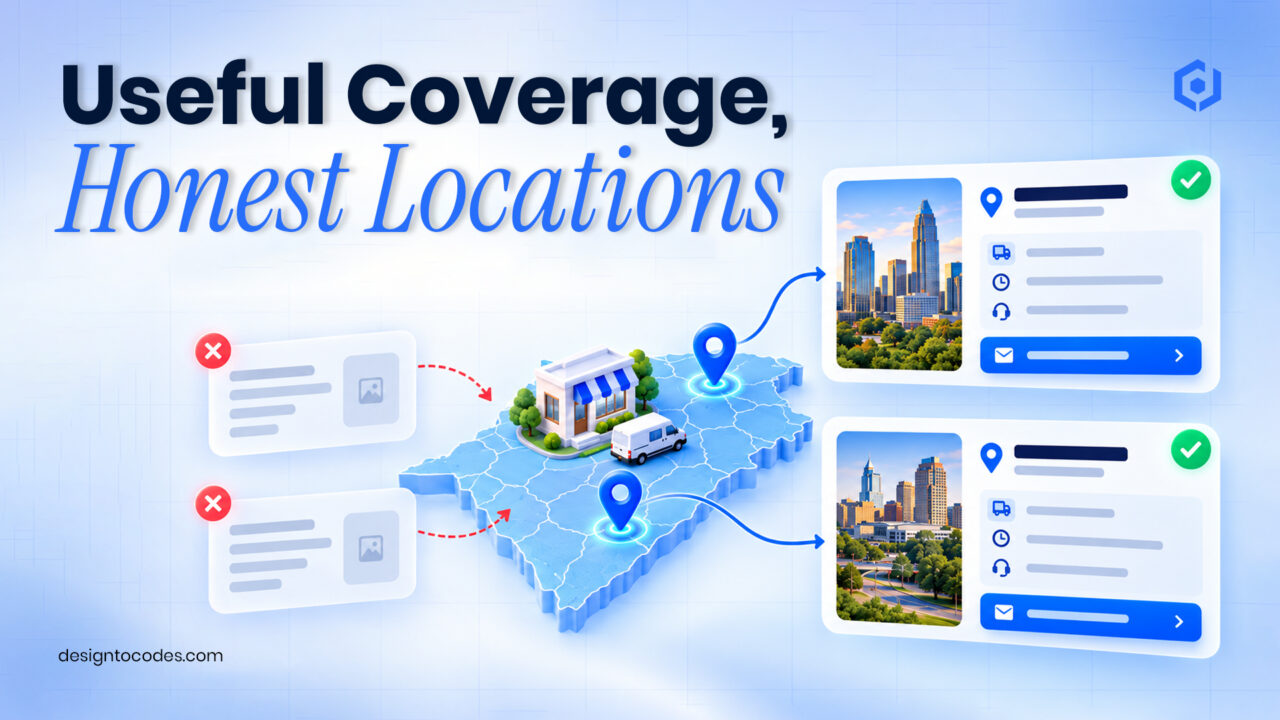
Build service area pages when customers in that area need genuinely different information: available services, coverage boundaries, travel conditions, a relevant project, or a specific contact route. Use a shared layout to keep editing consistent, but write each page around facts the business can support. If the only difference is the town name, start with one useful coverage page instead.
A cleaning team may serve several towns without maintaining an office in each one. A repair business may collect vehicles within a limited radius. Both need to explain coverage, but neither benefits the visitor by publishing an invented local address. The first question is what the customer needs to know before contacting the business.
This guide supplies a content model, a page decision sheet, and a maintenance procedure. The Framer setup is a proposed implementation, not a feature claimed for every template. DesignToCodes sells related templates; no local-ranking or inquiry increase is claimed.
Decide whether the area needs its own page
| Situation | Useful publishing choice | Information that earns the page |
|---|---|---|
| The service and conditions are identical everywhere | One coverage page | Accurate service boundary and how to check eligibility |
| Travel or availability differs by area | A distinct area page may help | Actual conditions, scheduling process and exceptions |
| A separate staffed branch serves the area | A branch page | Real address, opening hours, team and branch contact |
| Only the place name changes | Improve the shared page first | Additional useful information before creating another URL |
| The business does not serve the area | Do not present it as covered | Explain alternatives only when they are real |
Write the customer’s question beside the proposed URL. “Can someone collect my car from this neighborhood?” is a task. “Rank for every nearby town” is not a content brief. Google’s spam policies describe doorway abuse; avoid producing similar intermediate pages whose purpose is merely to funnel visitors elsewhere.
For the wider cleaning-site structure, use the existing cleaning-business website playbook. Keep this procedure focused on coverage information rather than repeating its entire service, trust and quote guide.
Step 1: Collect coverage facts before designing pages
Ask the operating team which services are available in each area, which requests need approval, and what travel conditions affect the work. Record who verified the answer and when. Do not publish a fixed response time if it is only an aspiration.
Gather a real example when available: an approved project description, a genuine customer question, or a service limitation. Remove identifying customer details when they are unnecessary. Photographs should explain the work, not imply that a stock image proves a local job.
Step 2: Use a coverage content model
| Field | What to store | Editing rule |
|---|---|---|
| Area name and slug | A real, supported service area | Keep the URL stable after publication |
| Coverage summary | What the team actually covers | Describe boundaries in understandable language |
| Available services | The relevant subset of offers | Link to existing detailed service pages |
| Conditions | Travel, access or scheduling considerations | Verify with the operations owner |
| Local evidence | A permitted example or useful question | Leave blank rather than invent a testimonial |
| Inquiry route | The correct destination and expected next step | Test receipt separately from the page layout |
| Review owner/date | Person responsible for factual updates | Recheck when coverage changes |
Do not require every optional field just to fill the layout. A truthful explanation of an unusual access condition may be more useful than a decorative map and three generic paragraphs. Put the most important qualification before the contact action.
Step 3: Implement the repeated layout in Framer
In a CMS-enabled project, create an Areas collection with fields suited to the content model, then connect those fields to the repeated page layout. Framer’s CMS overview explains collections, items, and fields. Confirm the project’s current plan and template structure before choosing the implementation.
Create one complete area item first. Check its title, coverage explanation, service links, and contact route on a phone. Only after that page works should you add the next item. This catches a repeated layout error before it appears across many pages.
Where a listing page is needed, use a collection list to display the approved items. Do not turn every combination of service and area into a page by default. The list should help visitors find information you actually maintain.
Worked example: Three areas, two page types
This is a fictional planning example. A repair shop serves its immediate neighborhood and two nearby towns. Local customers can bring a vehicle directly; collection from the other towns needs staff confirmation. The website currently implies that every request is an instant booking.
The revised plan uses one coverage overview and two detailed collection-condition pages. Each explains the real process, available service, information needed for the first response, and what remains subject to confirmation. No branch address is invented. Existing service descriptions remain on their established pages.
The editor records a permitted test inquiry for each route and asks the operating team to check the wording. The example demonstrates a publishing decision; it is not evidence of increased bookings.
Step 4: Check links and maintain the facts
Link from the coverage overview to approved area pages and from each area page to the relevant service explanation. Use anchors such as “vehicle collection conditions in this area,” rather than repeating a long keyword phrase everywhere. Link back to the coverage overview when it helps visitors compare eligibility.
If inquiries go missing, use the existing contact-form diagnosis guide rather than expanding this article into another form tutorial. When a service area closes, update the coverage facts and decide what information the old URL should now provide before changing it.
Choose a layout that can hold the information
For a repair-shop presentation, inspect AutoVibefix’s Framer version. Confirm whether the delivered project includes the CMS structure you need or whether it must be added. A template is useful when its layout and editing workflow match the brief; an existing suitable website may only need a new coverage section.
Frequently asked questions
Does every town need a separate service-area page?
No. Create a distinct page when it answers meaningful area-specific questions. Otherwise, a clear coverage overview can be easier to use and maintain.
Can I show an address in a town where I have no office?
Describe the service coverage accurately. Do not present an invented branch address as a business location.
Can Framer CMS repeat the page layout?
CMS collections can support repeated content layouts. Confirm current plan limits, fields, and the template’s delivered structure before implementing the model.
Should I put the whole service guide on every area page?
Summarize the relevant availability and conditions, then link to the established service description. Add area-specific detail where it changes the customer’s decision.
What should I measure after publishing?
Track relevant page visits, eligible inquiries, received requests, and completed jobs separately. Page counts and search impressions alone do not establish sales.
AutoVibefix Framer repair-site layout. Compare its current format and included scope with the task in this guide.
Related reading
Sources and platform references
Recent Posts



Recent Blogs
From the Journal
How should a service business build service-area pages? Build service
- Oct 06, 2026
- 5:51 PM
Should your business website use Framer or Next.js? Next.js vs.
- Oct 05, 2026
- 5:16 PM
Should you use a free or paid website template? Use
- Sep 25, 2026
- 1:02 PM

How can you launch a professional website in a weekend
- Sep 22, 2026
- 1:04 PM