

Build a Mobile Gym Class Timetable with Framer CMS
How do you build a gym class timetable that stays
On this page
How do you build a gym class timetable that stays accurate?
Give the timetable one source of truth, show the time zone and location, and separate recurring classes from exceptions such as cancellations or holiday changes. Use readable mobile class cards with a clear next step. If booking capacity lives in a separate provider, link to that provider rather than presenting a CMS listing as live availability.
The difficult part of a timetable is often the Friday change after the website has launched. A substitute coach arrives, a room closes or a beginner session moves. When the schedule is duplicated in a website image, a social post and a booking tool, visitors can receive three different answers.
This guide explains the schedule data, a proposed Framer CMS arrangement, and the update test. It does not repeat the existing gym-template selection guide. DesignToCodes sells Gymkear; the schema below is proposed setup work, not a claim that its package includes a booking system.
Choose the timetable’s source of truth
| Operating arrangement | What the website should display | Who owns changes |
|---|---|---|
| Classes have no reservation requirement | A maintained recurring timetable | Staff member responsible for the schedule |
| A booking provider manages capacity | Provider information or links that match its records | The booking-system administrator |
| Each location has different classes | Clearly separated location schedules | Named owner for each location |
| Sessions frequently change | A dated update process and visible exceptions | Operations owner who approves changes |
| Capacity is not connected to the website | Explain the request/confirmation step | Avoid presenting assumed spaces as live inventory |
Choose one publication workflow. If the provider is authoritative, a decorative website timetable should not quietly override it. When the website holds recurring information, explain how customers confirm an exception before traveling.
Step 1: Model a class as information, not a screenshot
Store the class name, day, start time, duration, location, coach, level, and action destination. State the time zone where visitors could reasonably confuse it. Keep prerequisites and equipment notes close enough to the class that a new member can understand whether it fits.
A weekly recurring slot and a dated event are different records. “Tuesday at 18:00” does not identify a canceled occurrence. Decide how a visitor will see exceptions before building the grid: a provider-controlled schedule, a dated notice, or explicit occurrence records.
Step 2: Create a maintainable content structure
| Content field | Example format | Question to settle |
|---|---|---|
| Class name | Beginner strength | Does the label make sense to a first-time member? |
| Day and start time | Tuesday, 18:00 | Which time zone applies? |
| Location | Main studio | Can visitors distinguish branches? |
| Level and preparation | Beginner; bring indoor shoes | What does the visitor need before attending? |
| Action destination | Provider class page or inquiry route | Does it reserve a place or request information? |
| Exception information | Dated cancellation notice | Who approves and removes the notice? |
| Display order | A documented ordering field | Does the website show the intended sequence? |
Use the simplest arrangement that staff can keep correct. A small studio may need a short list, not a complex calendar application. More filters are useful only when they help visitors find a suitable session.
Step 3: Build a readable Framer collection list
In a CMS-enabled project, connect the class fields to a collection-list card. Start with one complete class, then add a second day and location to check whether the layout handles real variation. Framer’s collection-list lesson explains how lists display collection items.
Give each mobile card the class name, day/time, location, relevant level and the correct action. A narrow phone screen should not require visitors to decipher an image containing a full desktop week. If the list is long, introduce a day or location filter after checking the underlying records.
Framer documents dynamic CMS filters, including visitor controls and empty states. Verify availability in the actual project. A filter selects displayed records; it does not synchronize a separate booking provider or calculate remaining places.
Step 4: Test the change that usually breaks the schedule
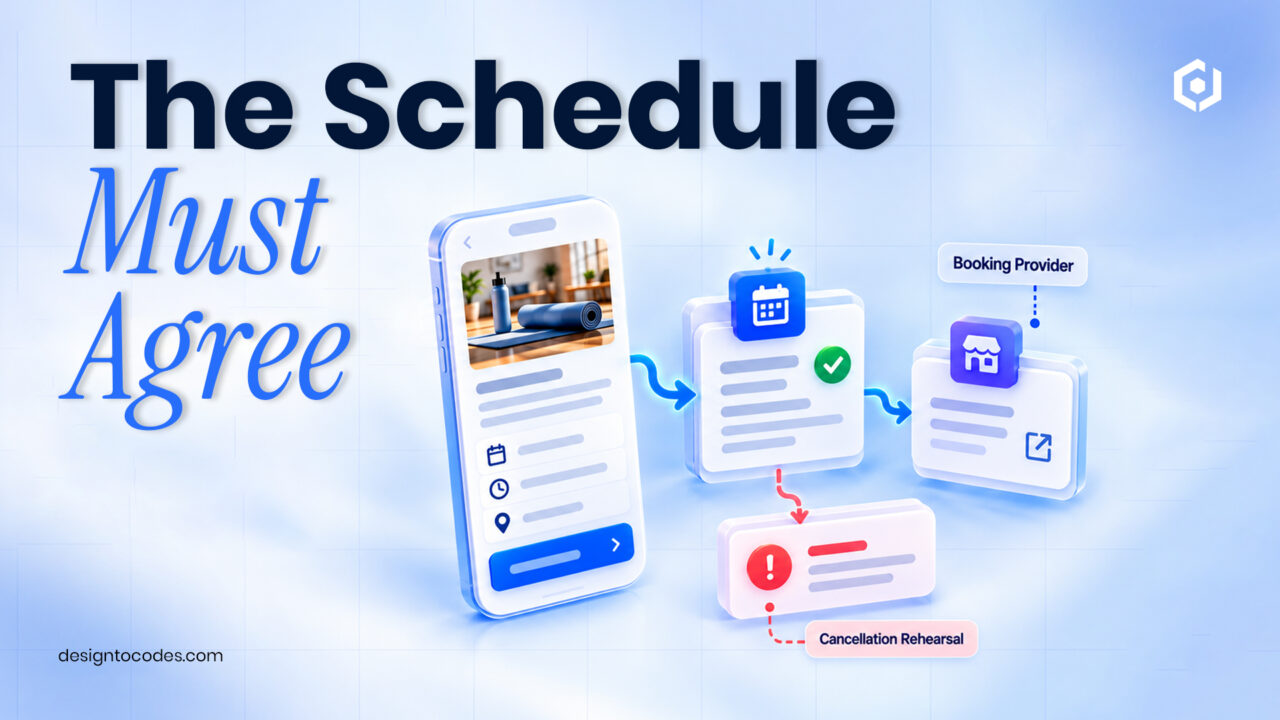
Choose one permitted rehearsal: move a class, change a coach or cancel an occurrence. Record the starting value, approval, edited record and public result. Check the website in a fresh browser session and compare the action destination.
The rehearsal should answer: Does the change appear in the expected place? Can a newcomer identify the updated class? Does the booking destination agree? Who removes an expired exception? If the website and booking provider disagree, resolve the source-of-truth problem before advertising the class.
Worked example: A canceled Tuesday class
This is a fictional studio example. The website shows a recurring Tuesday beginner class, while the booking provider correctly marks this week’s occurrence as canceled. A new visitor sees the timetable and assumes they can attend.
The studio stops maintaining a separate claim about this week’s availability. Its website explains the recurring schedule and routes reservations to the authoritative provider. A dated cancellation notice sits beside the relevant class until the affected occurrence has passed. The operations owner handles the provider record and the public notice.
No additional signup percentage is inferred. The improvement is an inspectable result: both routes now explain the same occurrence and the visitor’s next step.
Add a trial route without duplicating booking logic
A prospective member may need help choosing rather than an immediate reservation. Provide a clearly labelled trial inquiry or beginner information route where appropriate. Follow the existing contact-form guide when checking request delivery.
For the surrounding website, compare the existing Framer gym shortlist and inspect Gymkear. Ask specifically about CMS setup and booking integration. Do not choose a new template if the current site’s timetable can be maintained with a smaller change.
Frequently asked questions
Is a timetable the same as a booking system?
No. A timetable explains when classes normally happen. Reservations, capacity, and confirmations need an implemented operating system or provider.
Can I use an image of the weekly schedule?
An image can supplement the page, but provide readable class information and an update process. Check the actual mobile experience with your full schedule.
Do I need a separate CMS item for every occurrence?
It depends on the operation. Model recurring information and dated exceptions explicitly, or let an authoritative booking provider display occurrences.
What happens when a filter returns no classes?
Show a useful empty state and a way to clear the filter. Do not leave an unexplained blank area that looks like a broken website.
What should the team check before promoting a class?
Confirm the time, location, exception status, action destination, and responsible owner. Test a real permitted update before depending on the workflow.
Gymkear Framer gym-site layout. Compare its current format and included scope with the task in this guide.
Related reading
Sources and platform references
Recent Posts




Recent Blogs
From the Journal
How do you build a gym class timetable that stays
- Oct 10, 2026
- 11:59 AM

How should a service business build service-area pages? Build service
- Oct 06, 2026
- 5:51 PM

Should your business website use Framer or Next.js? Next.js vs.
- Oct 05, 2026
- 5:16 PM

Should you use a free or paid website template? Use
- Sep 25, 2026
- 1:02 PM