Why does my website say “Not Secure” and how do I fix it?
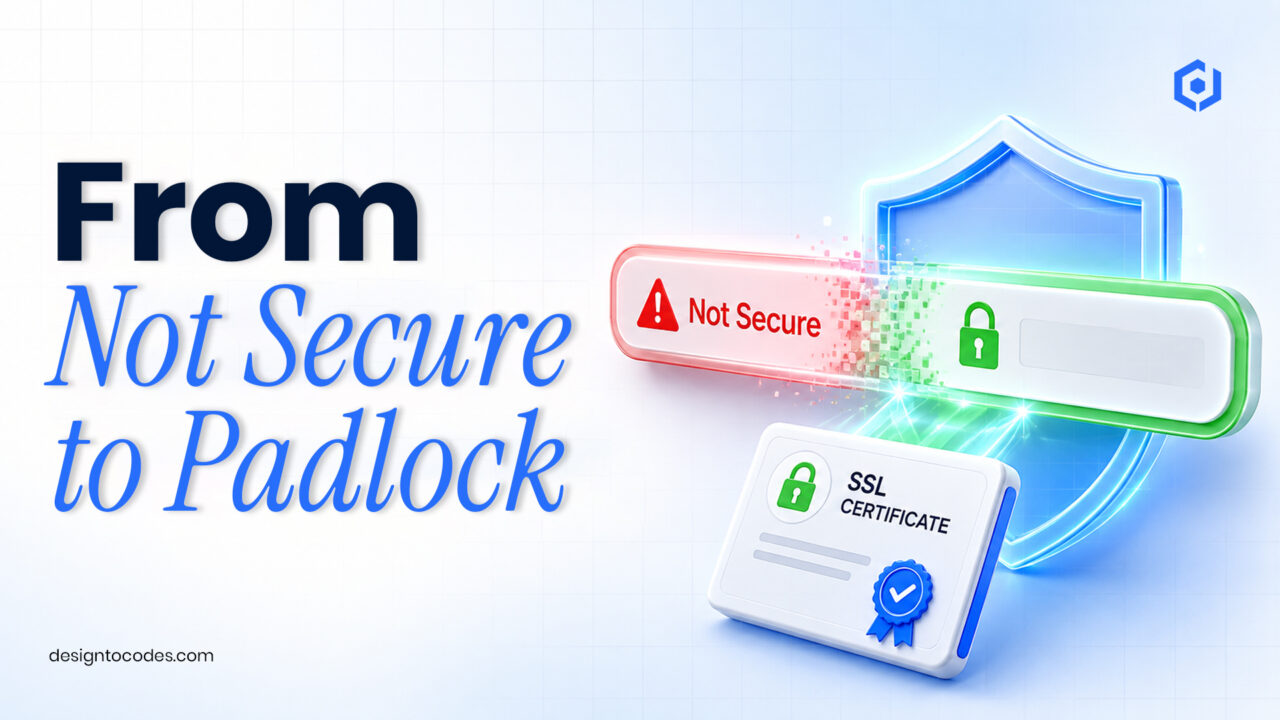
A website not secure warning means your site is loading over plain HTTP without a valid SSL certificate, or it has a certificate but is still serving some content (images, scripts) over HTTP – known as mixed content. The fix is to install or renew an SSL certificate, force every request to HTTPS, and update any hard-coded HTTP links. Once the whole page loads over HTTPS, the padlock returns.
If you have just seen that grey “Not Secure” label in the address bar, take a breath – a website not secure message rarely means you have been hacked. It usually means the site is simply unlocked: either there is no SSL certificate at all, the certificate has expired, or a handful of old links are still pointing at HTTP. All three are quick to fix once you know which one you are dealing with, and I will walk through each below. Getting this right also protects your rankings, since Google treats HTTPS as a signal – the same reason a well-optimized template matters for SEO in the first place.
What “Not Secure” actually means
Browsers show “Not Secure” whenever a page is not fully served over HTTPS. There are three common reasons, and knowing which one you have tells you the fix.
| Cause |
What you see |
Fix |
| No SSL certificate |
“Not Secure” on every page |
Install an SSL certificate |
| Expired certificate |
Full-page security warning |
Renew/re-issue the certificate |
| Mixed content |
Padlock with a warning; some pages flagged |
Update HTTP assets to HTTPS |
| No HTTPS redirect |
Secure only if you type https:// manually |
Force a site-wide HTTPS redirect |
Fix 1 – Install an SSL certificate
Most hosts now offer a free SSL certificate via Let’s Encrypt, often as a one-click toggle in your hosting panel (cPanel, Plesk, or the host’s dashboard). Enable it there first. On WordPress, a plugin like Really Simple SSL can detect the certificate and switch the site to HTTPS in a couple of clicks. If your host does not provide free SSL, that is a strong reason to switch hosts.
Fix 2 – Renew an expired certificate
SSL certificates expire (Let’s Encrypt every 90 days) and are usually set to auto-renew. If yours lapsed, re-issue it from your hosting panel or ask your host to renew it. Then clear your browser and site cache so the new certificate is picked up.
Fix 3 – Force HTTPS everywhere
Having a certificate is not enough if visitors can still reach the HTTP version. Redirect all traffic to HTTPS. On WordPress, set both the WordPress Address and Site Address to https:// under Settings, and add a redirect (Really Simple SSL does this automatically). On other hosts, add an HTTPS redirect rule in .htaccess or your server config.
Fix 4 – Fix mixed content
If you have SSL but still see a warning, an asset is loading over HTTP. Open the browser dev tools console – it lists each “Mixed Content” item. Update those URLs to https:// (or protocol-relative), especially hard-coded image, script, and stylesheet links in your theme or content. A search-and-replace of “http://yourdomain” to “https://yourdomain” in the database usually clears the last stragglers.
Related guides
Keep your site healthy with our WordPress security best practices, fix other server hiccups in the 500 internal server error guide, and once it is locked down, speed the whole thing up.
Frequently asked questions
Does “Not Secure” mean my website is hacked?
No. It almost always means the site lacks a valid SSL certificate or is serving some content over HTTP. It is a configuration issue, not a breach – though leaving it unfixed does make the connection less safe for visitors.
Is an SSL certificate free?
Usually yes. Most hosts provide free SSL through Let’s Encrypt, often as a one-click option. You rarely need to buy one for a standard website.
Why does my site still say “Not Secure” after installing SSL?
Almost always mixed content – an image, script, or stylesheet still loading over HTTP. Check the browser console for “Mixed Content” warnings and update those URLs to HTTPS.
Does HTTPS help SEO?
Yes. HTTPS is a confirmed Google ranking signal, and browsers actively warn users away from non-secure sites, so fixing it protects both rankings and trust.