

Next.js CMS Updates Not Showing? Trace the Stale Layer
Why is updated CMS content not showing on a Next.js
On this page
Why is updated CMS content not showing on a Next.js website?
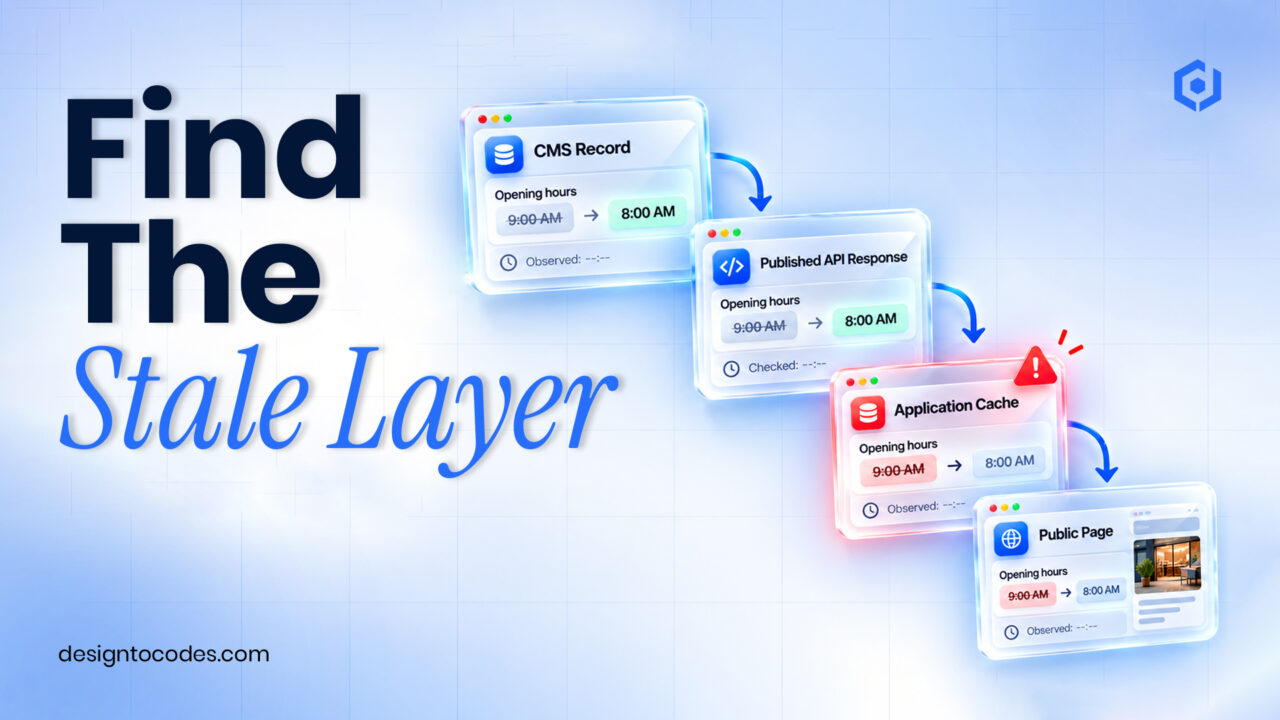
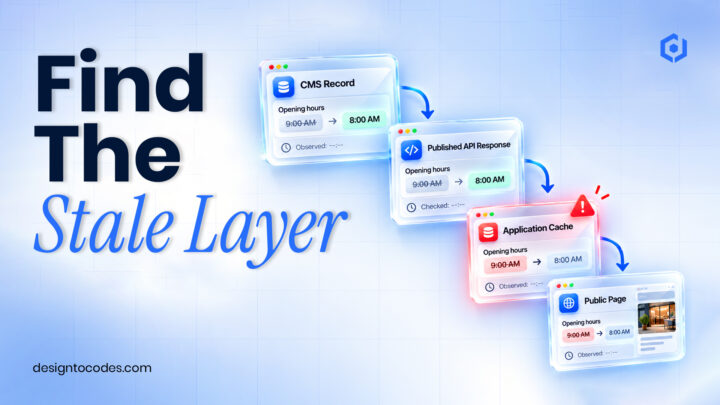
Check the record, environment, and publication status first, then trace the update through the fetch, application cache, and deployment. A correct CMS edit can still be absent from the public page if the website reads another dataset, serves cached content, or only rebuilds at deployment. Identify the stale layer before changing the entire caching strategy.
A service business changes an opening hour or guide price and expects the website to reflect it. The editor sees the new value in the CMS, but a customer sees the old one. That is a content-freshness problem. It requires a different diagnosis from a page-speed score or a general “is Next.js good for SEO?” discussion.
This procedure works from observed values and timestamps. It is not a package test of any DesignToCodes template. Check your installed Next.js version, router, and hosting arrangement before adapting an API example; current documentation is not a guarantee that an older starter behaves identically.
Locate the first layer that still has the old value
| Observation | First layer to inspect | Useful next check |
|---|---|---|
| CMS editor shows a draft change | Publication workflow | Read the published record through the intended API |
| Public API still returns the old value | Dataset, status or upstream cache | Confirm record identifier and production environment |
| API is correct, server output is old | Application data or route cache | Inspect fetch configuration and revalidation path |
| Direct request is correct, open tab is old | Client state or browser cache | Compare a fresh session and navigation behavior |
| Only one host/environment is stale | Deployment configuration | Check the deployed commit and environment settings |
| Rebuild fixes it; later edits do not | Update mechanism | Determine whether content is read at build time |
Write down the observation rather than merely saying “the cache is broken.” A failed CMS publish and a missing revalidation event can look identical on the page but require different repairs. Use non-sensitive content for the diagnostic record.
Step 1: Identify the exact content record
Record the public URL, CMS record identifier, field, previous value, and intended new value. Confirm that the edit is published and that the production API exposes it. Keep preview and production datasets separate in the investigation.
Inspect the request the application actually makes. A local development environment may use a different dataset or endpoint from production. Check names and routing without displaying tokens or secrets. If the server never receives the new value, invalidating its cache will not correct the upstream record.
For a beginner’s project structure, use the existing Next.js portfolio build guide. This article stays focused on an already deployed site’s content update rather than another complete build tutorial.
Step 2: Identify the project’s caching model
Find the installed Next.js version and whether the page uses the App Router or Pages Router. Inspect the relevant loader, fetch options, and route configuration. Determine whether the value comes from a CMS request, a local file, a build-generated artifact, or a client-side data library.
The Next.js caching guide describes a particular caching model and links to the newer alternatives. Use documentation that matches the actual project. Do not assume every fetch is cached or uncached across framework versions.
For older downloaded templates, inspect the delivered package instead of inferring behavior from the product’s framework label. A portfolio with local data files will not start reading a CMS merely because an editor creates a record elsewhere.
Step 3: Match the update event to the affected output
| Update design | Question to answer | Validation result |
|---|---|---|
| Content read during build | What triggers the next build? | New deployment renders the intended value |
| Time-based freshness | What delay is acceptable for this content? | The value changes within the agreed process |
| Path revalidation | Which page or layout needs refreshing? | The correct public route shows the new value |
| Tagged data | Which pages share the same cached record? | All affected uses follow the chosen behavior |
| Client-side data | What refetch/invalidation event is required? | A fresh session and existing session behave as intended |
| Provider/CDN cache | Who controls the upstream response? | The application receives the updated record |
The official revalidatePath reference explains path invalidation in server contexts. A Route Handler can mark a path for revalidation on its next visit; the handler’s success response alone is not proof that the public page already contains the edit.
The revalidateTag reference covers shared tagged data. Its current recommended stale-while-revalidate behavior may serve stale data while refreshing. Choose behavior that fits the business requirement and the installed version rather than copying a call without understanding it.
If a CMS webhook triggers the update, verify that the production endpoint receives an authorized event, validates its origin, and targets the intended record. Do not publish secret-bearing example URLs or expose an unrestricted public cache-purge endpoint. The CMS provider’s own delivery record and the application’s logs should refer to the same permitted test.
Worked example: An opening hour updated in the wrong dataset
This is a fictional diagnostic trace. A business editor changes Thursday closing time in a preview dataset. The production website continues to show the old time. A developer initially suspects route caching because a local preview shows the new value.
The record check reveals that the production API also returns the old time. The team publishes the approved change in the correct dataset and then follows its configured update mechanism. Only after the API and public page agree do they close the issue.
The repair does not involve disabling all caching. The example illustrates why the upstream record belongs at the start of the investigation. It is not evidence that your website has the same fault.
Step 4: Retest the public page and related views
Use a fresh session to inspect the exact public route. Check any related listing card, detail page, and alternate entry point that displays the same value. Record the observation time and expected update behavior. Where a stale response is intentionally allowed, make the permitted delay part of the maintenance agreement.
Keep performance and discoverability checks separate. The existing Next.js performance guide addresses speed, while the established SEO guide addresses search implementation. Neither replaces the record-to-page freshness test.
Choose a starter around the editing requirement
If CMS editing is essential, ask which integration, data structure, and update mechanism the starter actually supplies. Compare the Next.js collection with that requirement. Buying another layout is unnecessary when a small, verified data-flow repair solves the problem.
Frequently asked questions
Should I disable caching to fix stale CMS content?
Locate the stale layer first. A dataset or publication error remains wrong even without application caching. Choose freshness behavior appropriate to the content.
Does a successful webhook response prove the update is live?
No. Trace the event to the intended record and inspect the public output under the configured revalidation behavior.
Why does a rebuild fix the page temporarily?
The site may read content at build time or reset a relevant cache during deployment. Inspect the actual loader before concluding which mechanism applies.
Can I copy current revalidation syntax into an older template?
Match the installed version and router to their documentation. Current API behavior can differ from older starters.
What should a support request include?
Provide the public route, non-sensitive record identifier, version, expected value, observed value and timestamps. Keep credentials and private customer data out of screenshots.
Next.js template collection and documented scope. Compare its current format and included scope with the task in this guide.
Related reading
Sources and platform references
Recent Posts




Recent Blogs
From the Journal
Why is updated CMS content not showing on a Next.js
- Oct 20, 2026
- 12:19 PM

Does a hotel website template include a working booking system?
- Oct 17, 2026
- 1:11 PM

How do you turn kitchen-project photos into a useful case
- Oct 13, 2026
- 11:46 AM
How do you build a gym class timetable that stays
- Oct 10, 2026
- 11:59 AM