What causes the 500 internal server error in WordPress, and how do you fix it?
The 500 internal server error wordpress almost always comes from one of four causes: a corrupted .htaccess file, a PHP memory limit that’s been hit, a broken plugin or theme (Elementor’s premium add-ons are common culprits), or an outdated PHP version. Work through them in that order and you’ll resolve most cases in under fifteen minutes. Start by enabling debug logging so you’re fixing the real cause, not guessing.
First: see the actual error
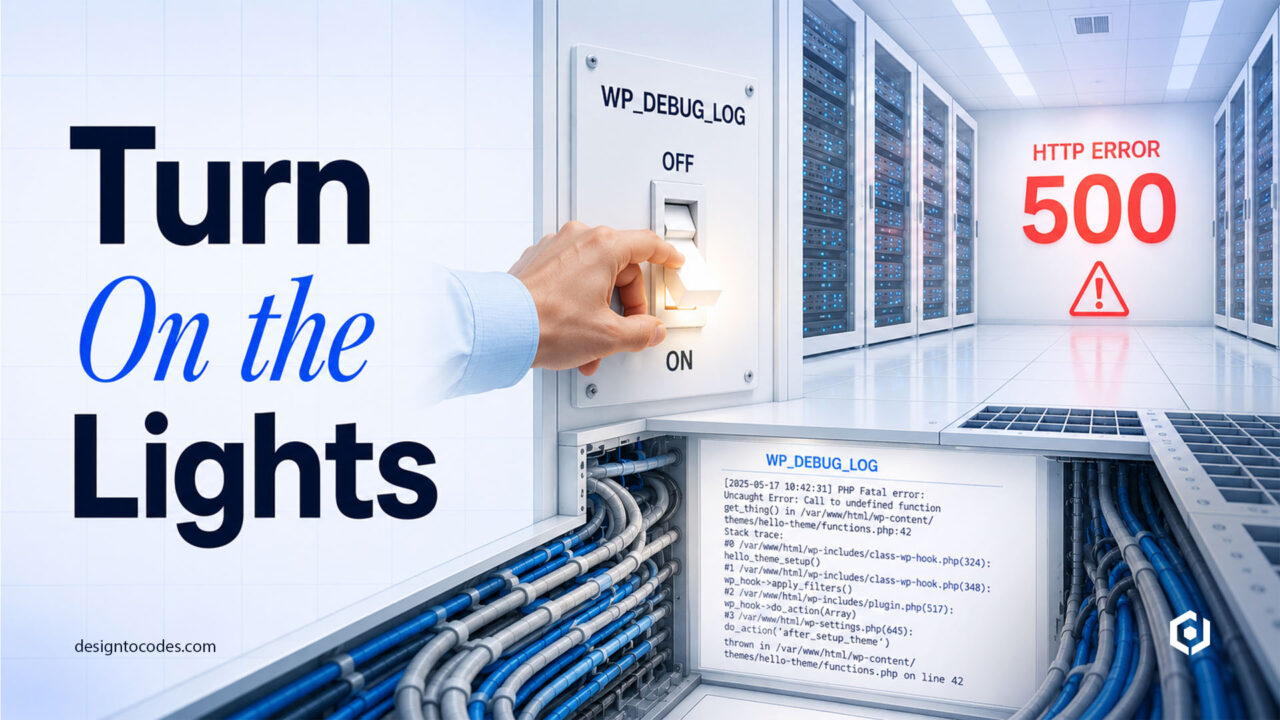
A 500 internal server error wordpress is deliberately vague in the browser. Turn on logging to find the real message. Add this to wp-config.php above the “stop editing” line:
define( 'WP_DEBUG', true );
define( 'WP_DEBUG_LOG', true );
define( 'WP_DEBUG_DISPLAY', false );
Reload the page, then open /wp-content/debug.log. The last line names the file or plugin causing the crash. This single step turns a blind fix into a targeted one.
Fix 1 — Regenerate the .htaccess file
A corrupted .htaccess is the most common cause. Via FTP or your host’s file manager, rename it to .htaccess_old, then in WordPress go to Settings → Permalinks and click Save (this regenerates a clean file). Reload your site.
Fix 2 — Raise the PHP memory limit
Elementor is memory-hungry; the default limit is often too low. In wp-config.php:
define( 'WP_MEMORY_LIMIT', '512M' );
If your host caps this, also add memory_limit = 512M to php.ini Or ask your host to raise it. Elementor officially recommends 512M for sites with premium widgets.
Fix 3 — Find the broken plugin (the systematic way)
If the log points to a plugin, or you can’t access the WP-Admin:
- Via FTP, rename
/wp-content/plugins to plugins_off. If the site loads, a plugin is the cause.
- Rename it back, then deactivate plugins one at a time (rename each folder) until the error clears.
- The last one you disabled is the culprit — update it, replace it, or contact its developer.
For Elementor specifically, a version mismatch between Elementor and Elementor Pro causes 500s after updates. Always update both together, and keep your theme updated alongside them.
Fix 4 — Update your PHP version
WordPress 6.x and current Elementor expect PHP 8.1+. Sites stuck on PHP 7.4 throw 500s on modern plugins. In your hosting panel (cPanel → “Select PHP Version”, or your host’s equivalent), switch to PHP 8.1 or 8.2, then test. Back up first — a rare plugin may need updating for PHP 8.
Quick diagnostic table for 500 internal server error wordpress
| Symptom |
Most likely cause |
Go to |
| 500 after a permalink change |
Corrupted .htaccess |
Fix 1 |
| 500 only on Elementor editor |
Memory limit |
Fix 2 |
| 500 right after an update |
Plugin/theme conflict |
Fix 3 |
| 500 on a new plugin install |
Old PHP version |
Fix 4 |
How to prevent 500 internal server error wordpress from happening again
- Run a staging site and test plugin/theme updates there first.
- Keep automated daily backups (UpdraftPlus or your host’s snapshots).
- Update Elementor and Elementor Pro together, never separately.
- Choose well-coded themes and templates — bloated, poorly-built themes are a recurring source of memory and conflict errors. Our hand-coded WordPress and Elementor templates are built to current PHP and Core Web Vitals standards, specifically to avoid these failures.
Frequently asked questions
What causes a 500 internal server error in WordPress?
Most often, a corrupted .htaccess file, an exhausted PHP memory limit, a plugin or theme conflict, or an outdated PHP version. Enabling debug logging reveals which one applies to your site.
How do I fix a 500 error if I can’t access wp-admin?
Use FTP or your host’s file manager. Rename the plugins folder to deactivate all plugins at once; if the site returns, re-enable them one by one to find the culprit. Also, try regenerating .htaccess.
Why does Elementor cause 500 errors?
Usually a too-low PHP memory limit or a version mismatch between Elementor and Elementor Pro. Raise the limit to 512M and always update both plugins together.
Does a 500 error hurt my SEO?
Briefly, if it persists. Google may temporarily drop pages it can’t crawl, but rankings recover once the error is fixed and the site is re-crawled. Fix it quickly and submit the URL in Search Console.